
What is the issue?
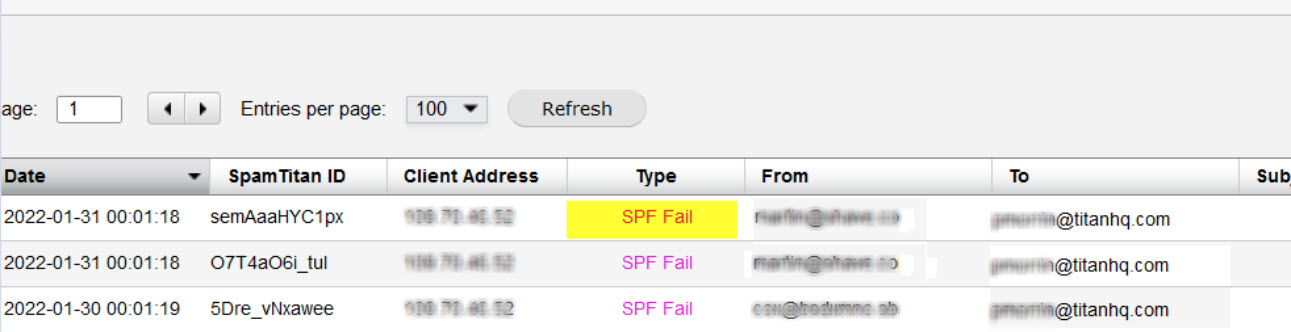
An email is blocked in Reporting > History as 'SPF FAIL', but you still want to allow the sender through on their next attempt. This can be done by adding to the SPF FAIL exclusion list.
What is the Solution?
Go to System Setup > Mail Authentication > SPF > SPF Bypassed IPs/Networks.
Click Add.
In IP/Networks: enter the IP from the Client Address field (see above) in Reporting > History.

Click Save.
Further Info
When adding an exclusion as above, you can add a CIDR range by specifying the netmask value from the Netmask drop-down menu.
For more documentation, see SPF Settings.