Follow the steps below to bulk import global allowed and blocked domains into WebTitan from a CSV file.
Go to Settings > Global Domains.
Select Import at the top of the Domains table and the Import Domain window displays.
-
Select Import File and choose either Allowed Domains or Blocked Domains.

Browse to locate your CSV file and click Open.
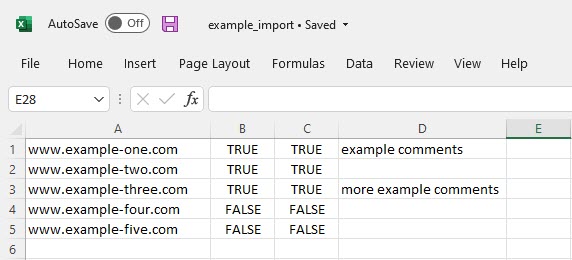
The CSV file must have a single domain per line and follow the following format:
Domain: Domain name, in a valid format, that you want to allow or block (required).
Subdomains: TRUE or FALSE (default: TRUE).
Log Requests: TRUE or FALSE (default: TRUE)
Comment: Optional comment field.
Example CSV file for import:
Note that:
Duplicate entries invalidate an import.
-
Imported domains take precedence. For example:
If a domain is currently allowed and is then imported as a blocked domain, the blocked domain takes precedence.
If a domain is currently blocked and is then imported as an allowed domain, the allowed domain takes precedence.
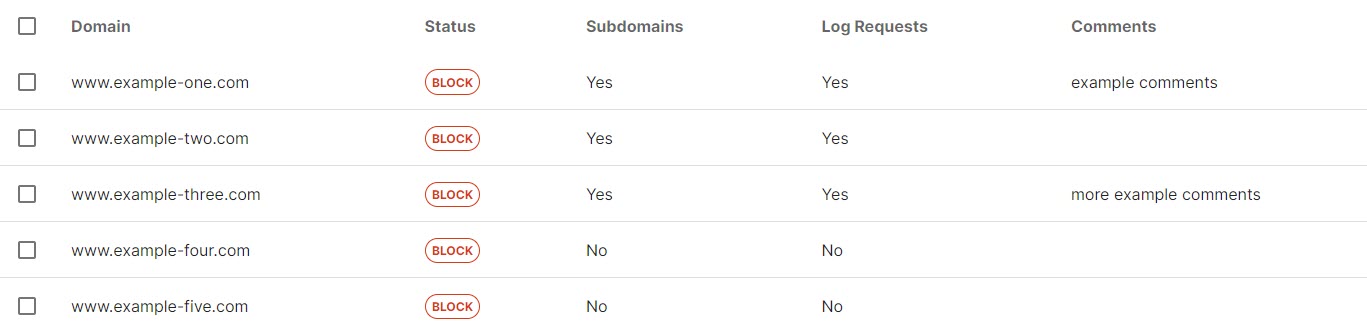
Example CSV contents as they appear in the Allowed & Blocked Domains table after a blocked domain import: