
Go to Content Filtering > Domains to view and manage your allowed and blocked domains.
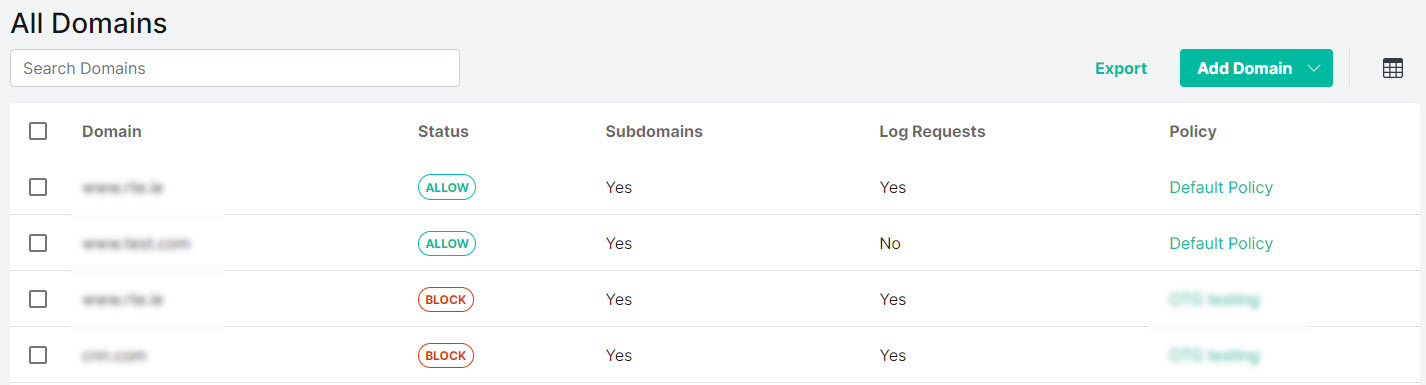
Select Export to export all domains as a .csv file.
Select the columns
 icon to display the table column names. Slide each on and off to view or hide a column.
-
Use the search box to enter a search term (results display as you type).

To delete a domain, select the box
 beside the user (or users) and select Delete.
The following information is available for each domain:
Domain: Enter the domain you want to allow or block.
Status: Is this domain allowed or blocked (Allow / Block)
Subdomains: Are subdomains included (Yes / No). If your domain is example.com and Include Subdomains was checked when this domain was added, then all domains ending in example.com are also allowed or blocked, e.g. support.example.com and products.example.com.
Log Requests: Are requests to this domain going to the logger for reporting (Yes / No).
Policy: The policy that is currently being applied to this domain.
Comments: Optional comments about this allow or block domain.
Editing Domain Details
Click on a domain to view the Domain Details page, where you can edit domain details.