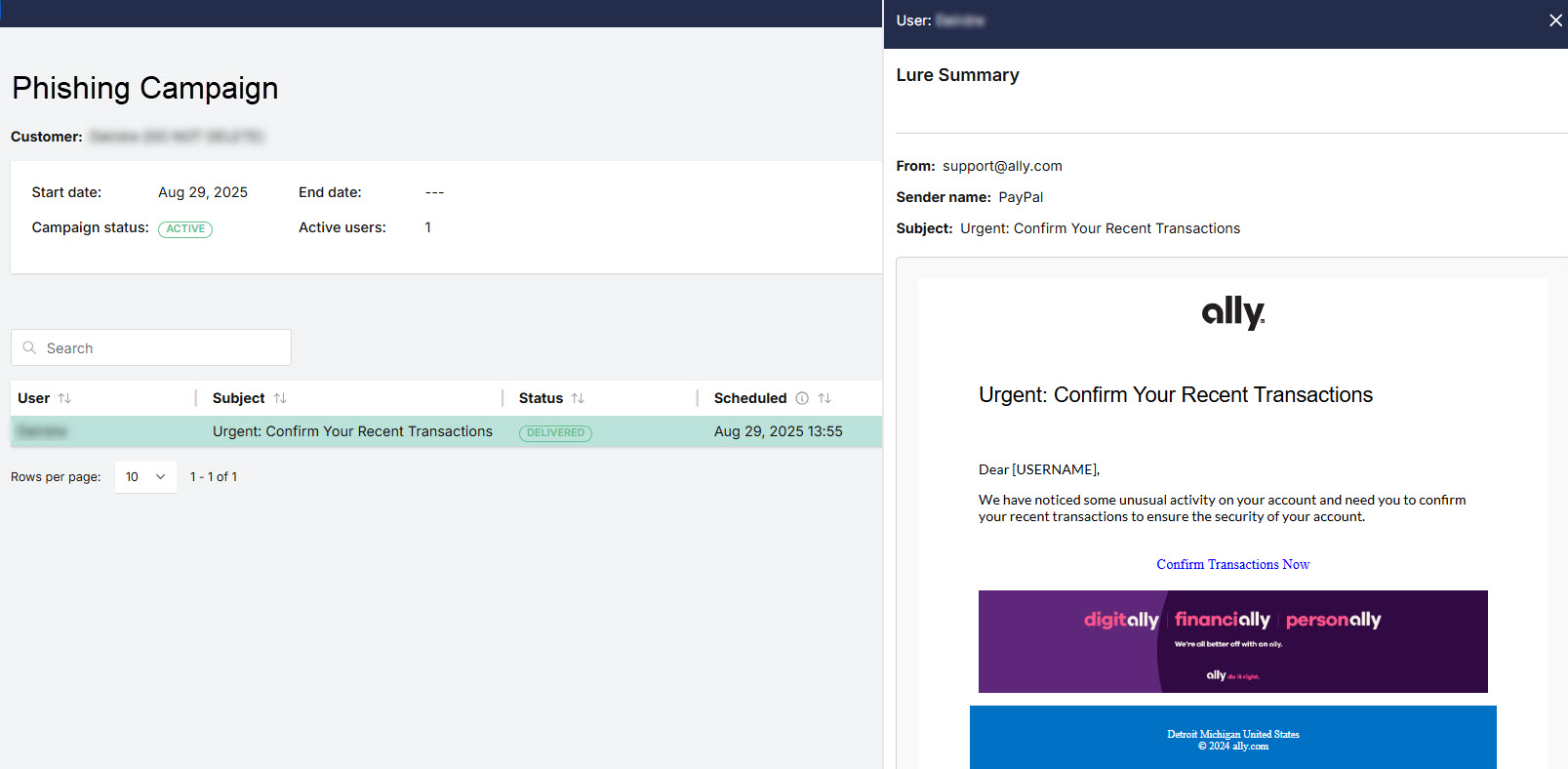
From the Campaign Details page, you can drill down to a user, and select the lure content that they have been sent or are scheduled to receive. If the user has interacted with the lure, this can help you understand what triggered the interaction.
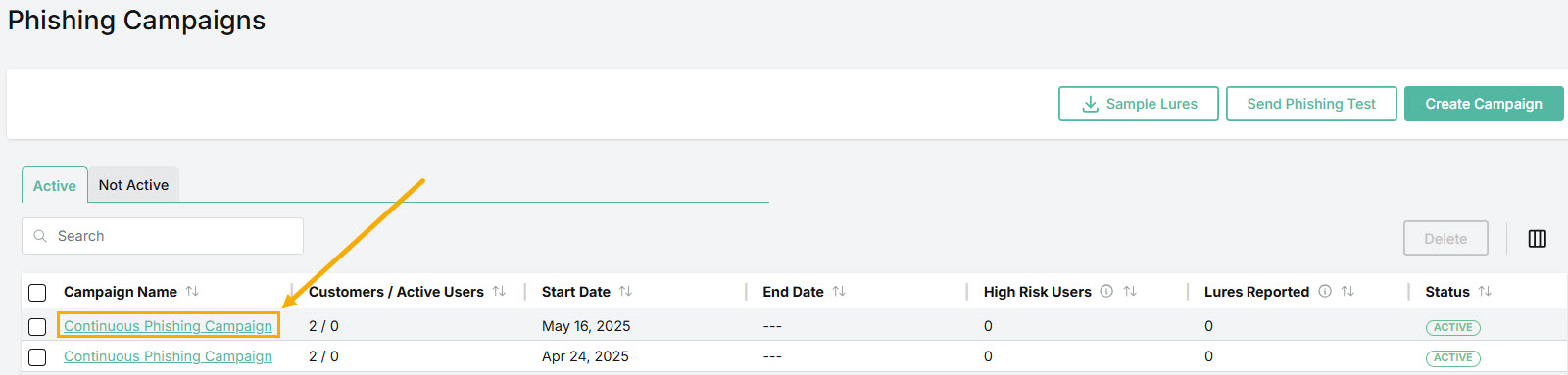
Go to Phishing Simulation > Phishing Campaigns. The Active tab opens by default and displays all active and planned phishing campaigns. The Not Active tab displays phishing campaigns that you have deleted and campaigns that have been completed. You can view the lure content of active, planned and completed campaigns.
Locate the campaign you want to view, and click the campaign name to open the Campaign Details page.
Select a row to view the lure content for a user. The Lure Summary slides out from the right side of the page.