
Go to Environment > Devices to view and manage individual devices in WebTitan. When you select a device from the All Devices table you can:
Edit the device name.
-
Change the virtual location and policy associated with the device. See Changing the Location & Policy Assigned to a Device.
Note
The virtual location associated with a device determines the policy that is given. Therefore, if a virtual location is shared by many devices, the policy must the assigned to that virtual location from Environment > Locations.
Assign a device exception to the device. See Applying a Device Exception to a Single Device.
View and edit any custom JSON configuration in place for the device. See Editing Custom Configuration for a Single Device.
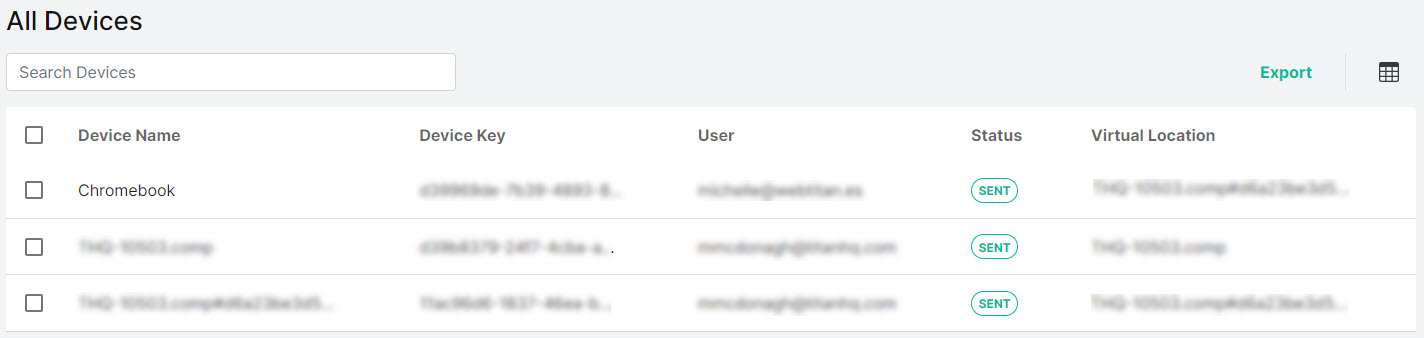
Select Export to export all devices as a .csv file.
Select the columns
 icon to display the table column names. Slide each on and off to view or hide a column.
-
Use the search box to enter a search term to search the devices table (results display as you type).

To delete a device, select the box
 beside the device (or devices) and select Delete.
The following information is available for each device:
Device Name: A device name is assigned during OTG installation. It can be edited on the device details page by selecting a device from the table.
Device Key: Unique key that identifies this device.
User: The user associated with this device.
Agent:
Device Exception: The device exception applied to this device (if any).
Status: Device configuration status.
Virtual Location: the location associated with this device.
Policy: The policy assigned to this device.
